





















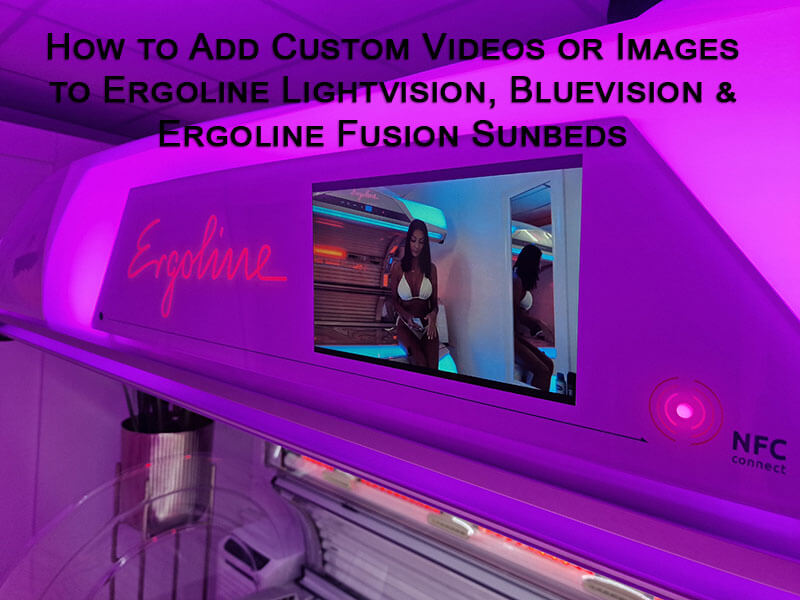
Personalising the welcome screen on your Ergoline Lightvision, Ergoline Bluevision of Ergoline Fusion sunbed is one of the simplest ways to strengthen your salon’s branding, enhance the client experience, and present a more professional and modern environment. Whether you want your own logo, a promotional video, or a seasonal graphic to appear on the display, the process is quick – as long as you follow the correct procedure.
This guide explains exactly how to upload your own videos or images, based entirely on the official Ergoline instruction manual. No guesswork, no shortcuts.
1. Supported File Formats
Before preparing anything, it’s essential to ensure your media meets Ergoline’s requirements:
- Accepted image formats: JPG, PNG, GIF
- Accepted video format: MP4
- Aspect ratio: 16:10 (otherwise the display may stretch or crop your content)
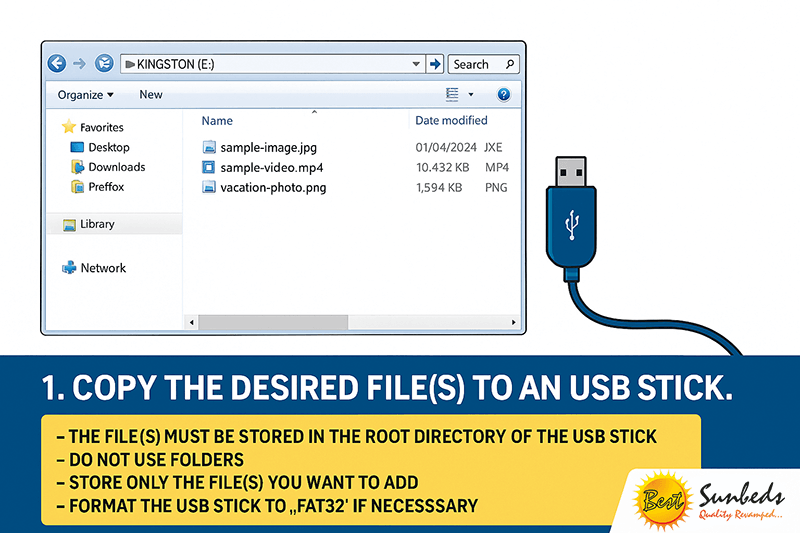
- Storage location: Files must be placed in the root directory of the USB stick
- Do not use folders – files in subfolders will not be detected
Keeping to these specifications ensures the sunbed will correctly read and display your media.
2. Preparing the USB Stick
Ergoline is very strict about USB formatting and file structure. Follow these rules to avoid transfer issues:
- The USB stick must be formatted to FAT32
- Only place the media files you want to upload on the USB — no extra files
- Do not create any folders
- Ideally use a standard 8–32 GB USB stick for best compatibility
Once prepared, safely eject the USB stick so it’s ready for use inside the sunbed.
3. Opening the Lower Section of the Sunbed
To access the USB port, you must open the lower section of the machine:
- Pull the handle outwards to open the lower compartment.
- An error message E036 will appear on the display — this is normal and can be ignored.
You must keep the lower part open for the USB transfer process.
4. Entering the Professional Setup Manager
To upload and activate your custom media:
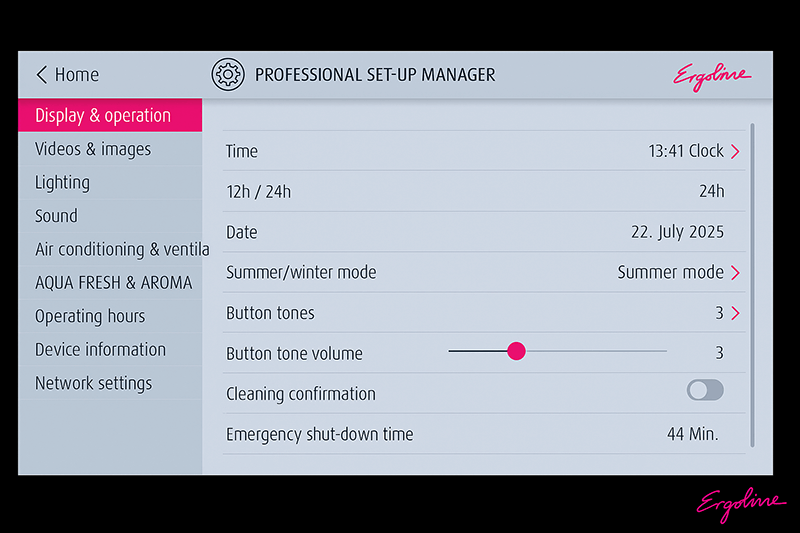
- Press the Ergoline symbol on the touchscreen.
- Enter the correct access code to open the Professional Setup Manager.
- Once inside, navigate to the directory titled “Videos & Pictures”.
This is where all playable and displayable media is stored.
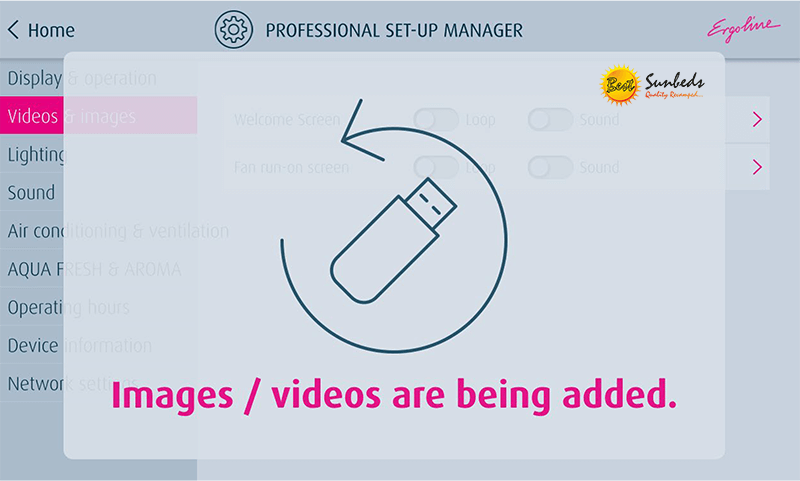
5. Importing Media from the USB Stick
Inside the machine you will see two USB ports. It is crucial to use the correct one:
- Use the USB port that is NOT marked red.
- Insert your USB stick.
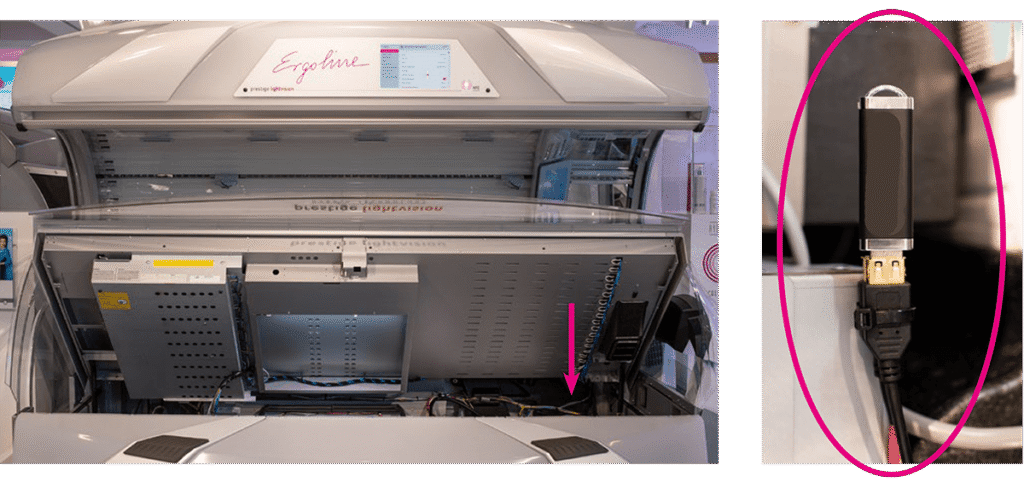
The system will automatically detect your files and begin the transfer.
Once completed, simply remove the USB stick — no manual copying required.
6. Closing the Device and Resetting the Error
When the import finishes:
- Close the lower section of the sunbed.
- On the internal display, press RESET to clear error message E036.
This prepares the sunbed for selecting your media.
7. Activating Your Custom Video or Image
To assign your uploaded content:
- Press the Ergoline icon again to re-enter the Professional Setup Manager.
- Go back to Videos & Pictures.
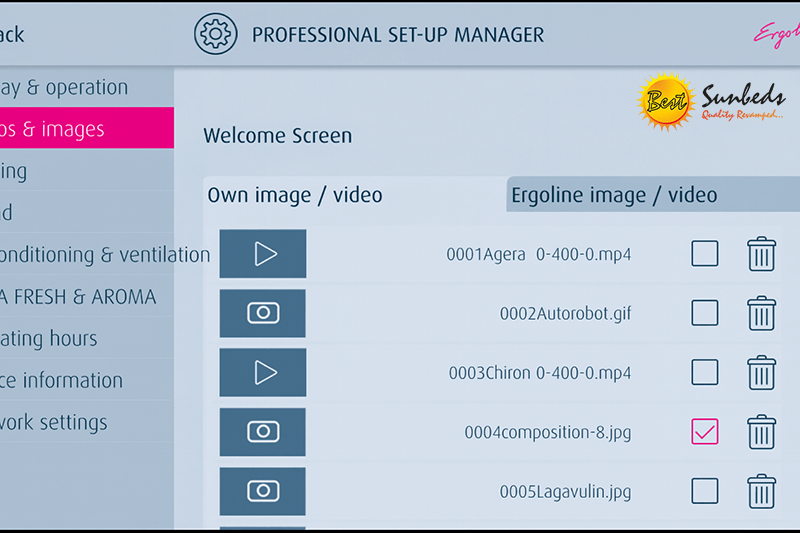
- Your uploaded files will now appear under “My Picture/Video”.
- Choose where you want your content to appear:
- Welcome Screen
- Fan Afterrun Screen (screen displayed while the fan cools down after a session)
- Select your file and exit the menu using Back → Home.
Your new media is now assigned to the display.
8. How the New Content Appears
A few seconds after exiting the menu, the sunbed will automatically show your chosen video or image on the Welcome Screen. Ergoline also alternates your custom media with the standard display, creating a professional and seamless presentation for your clients.
9. Troubleshooting – Common Issues and Solutions
If something doesn’t work, the issue is usually one of the following:
USB not recognised
- Use FAT32 formatting
- Remove all other files
- Place media in the root directory only
- Ensure you are using the non-red USB port
Files do not appear in the menu
- Incorrect file format
- Wrong aspect ratio
- Files inside a subfolder
- USB too large or incompatible
Content appears stretched
- Media must be designed in 16:10 proportions
10. Final Thoughts
Adding custom branding, promotional videos or personalised images to your Ergoline Lightvision or Bluevision sunbed is an excellent way to elevate your salon’s image. When done correctly, the process is quick, reliable, and repeatable.
For convenience, you can download the official instruction file directly from Best Sunbeds:
➡️ Ergoline Lightvision, Bluevision & Fusion – Custom Video & Image Upload Guide (PDF)
And if you need help preparing the media, formatting the USB stick, or selecting the correct screen options, our technical team is always ready to support you.
We provide ready-to-use media files for your Ergoline display. Contact our team today and we’ll prepare everything you need — quickly and professionally. And while you’re updating your salon visuals, explore our premium tanning cosmetics at Fame Tan: https://fame-tan.com/

This guide is extremely helpful. I struggled to find clear information about this process before coming across this article.
The instructions for uploading custom media to LightVision and BlueVision systems are very clear and easy to follow, even if you’re not particularly technical. It’s great to see everything explained step by step in one place.
Definitely a useful resource for anyone using Ergoline equipment.